

General & RBAC
Configuration → General is organized into tabs: Self Service, Security, Apple App Store Country Code, Naming, Maintenance Tasks, and Other.
Self Service
Section titled “Self Service”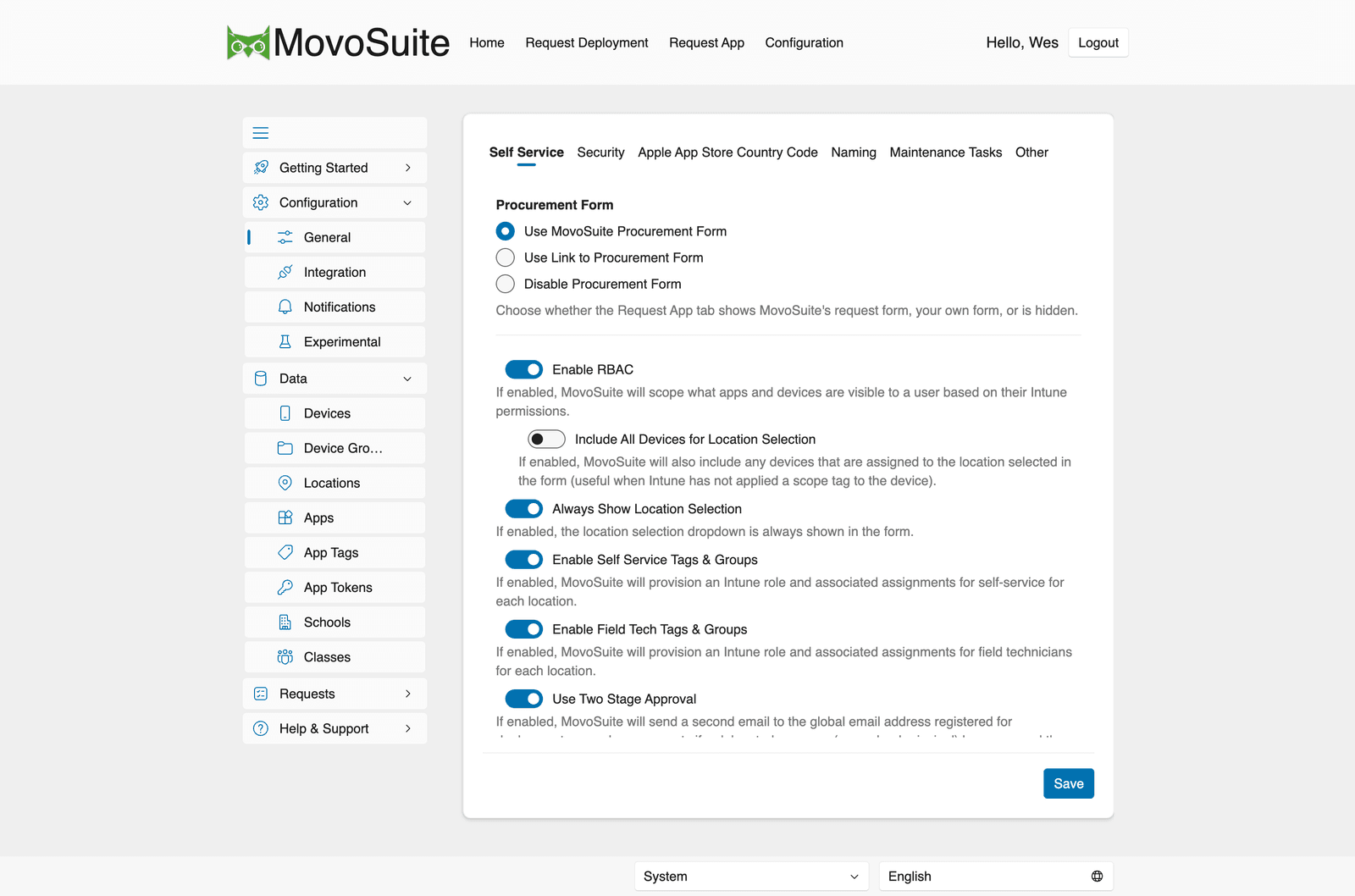
Controls the self-service experience and role-based access.
- Procurement Form — choose whether the Request App tab shows MovoSuite’s own form, links to your own form, or is disabled.
- Enable RBAC — scope the apps and devices a user sees to their Intune permissions.
- Include All Devices for Location Selection — also include devices assigned to the selected location (useful when Intune hasn’t applied a scope tag to a device).
- Always Show Location Selection — always show the location dropdown in the form.
- Enable Self Service Tags & Groups — provision an Intune role and assignments for self-service in each location.
- Enable Field Tech Tags & Groups — the same, for field technicians.
- Use Two Stage Approval — when a location-specific approver is configured, require that person to approve first and then route the request to the tenant-level approver. Without a location-specific approver, the tenant-level approver handles the request directly.
- Always require justification — require a reason on all deployment and purchase requests.
- Show app retail price in forms — display app retail price in the request forms.
- Disable daily deployment reminders — stop the daily reminder emails for pending requests.
- Hide Billing Code / Billing Code Placeholder — hide the billing-code field, or set its hint text.
- Timezone — site-wide timezone for emails, history, and logs.
- Device activity threshold (days) — devices not synced within this many days are treated as inactive in the deployment form.
- Device Sync Filtering — optionally hide stale devices from selection lists, with a configurable threshold (default 90 days).
- Stale Device Warning — optionally show a warning indicator next to devices not synced recently (default 7 days).
Security
Section titled “Security”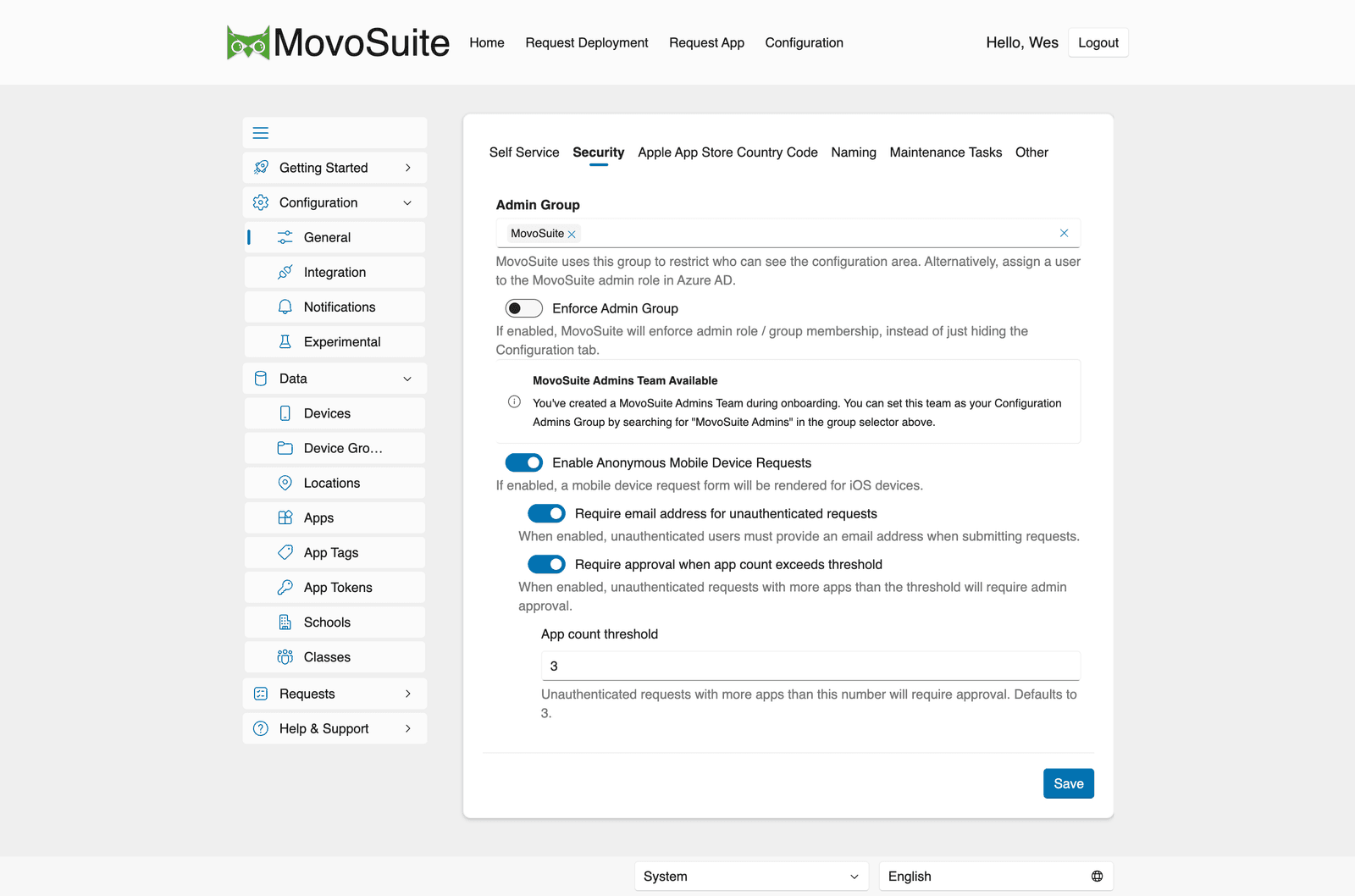
- Admin Group — the group that controls who can see the Configuration area. (You can instead assign users to the MovoSuite admin role in Entra ID.) If you created a MovoSuite Admins team during onboarding, you can select it here.
- Enforce Admin Group — enforce admin role/group membership rather than merely hiding the Configuration tab.
- Enable Anonymous Mobile Device Requests — render a request form for unauthenticated
iOS devices.
- Require email address for unauthenticated requests — require a contact address even when the requester does not select a notification channel. The native iOS app also requires the address when an anonymous requester selects email or Teams notifications; Teams uses it to identify the requester and does not enable email delivery.
- Require approval when app count exceeds threshold — with a configurable App count threshold (default 3).
Apple App Store Country Code
Section titled “Apple App Store Country Code”Sets the locale used when fetching app metadata from Apple (defaults to CA, Canada).
Naming
Section titled “Naming”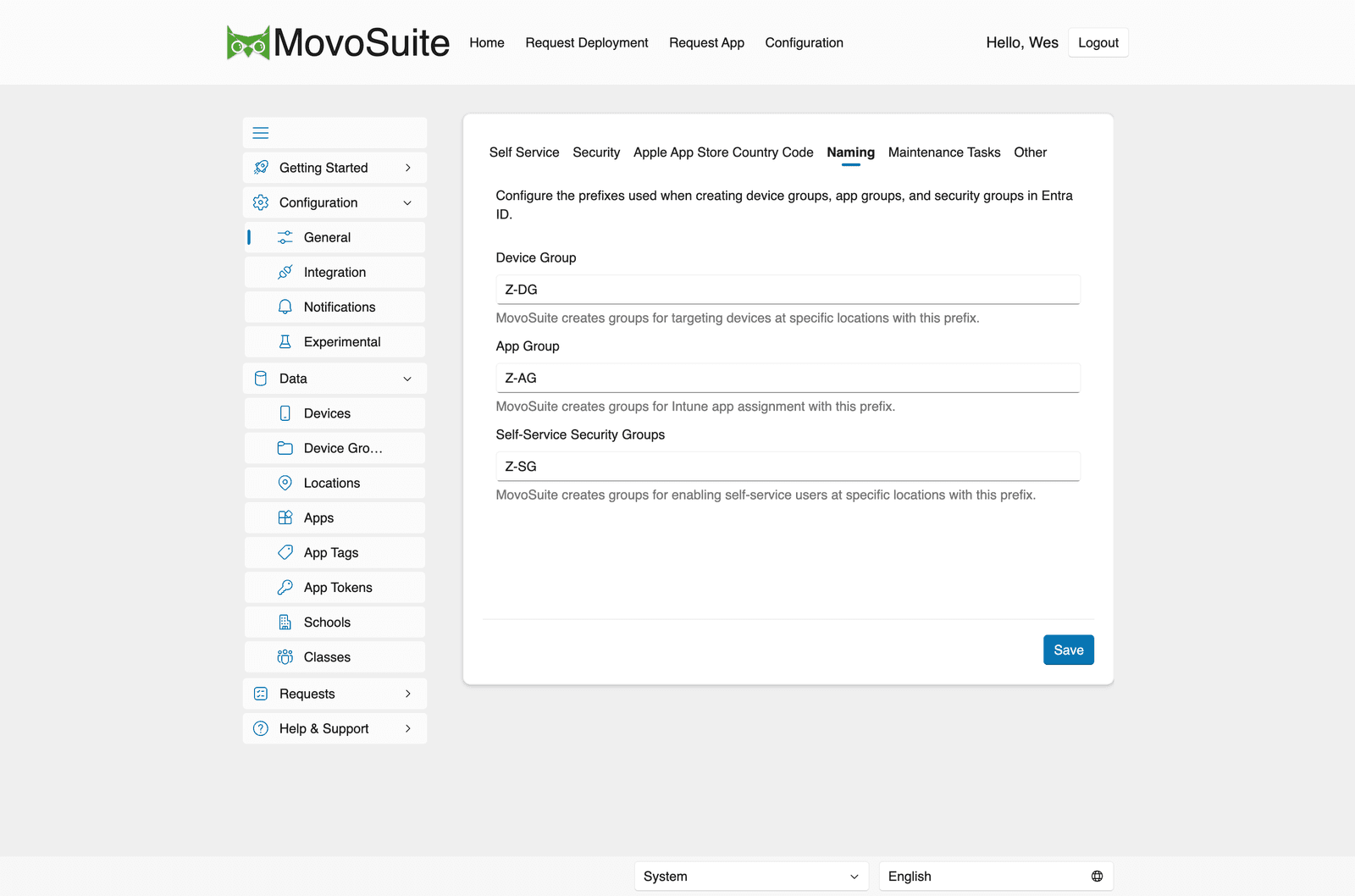
Sets the prefixes MovoSuite uses when it provisions Entra ID groups:
- Device Group — default
Z-DG(groups that target devices at a location). - App Group — default
Z-AG(groups for Intune app assignment). - Self-Service Security Groups — default
Z-SG(groups that enable self-service users at a location).
See Locations and Apps for how these groups are used.
Maintenance Tasks
Section titled “Maintenance Tasks”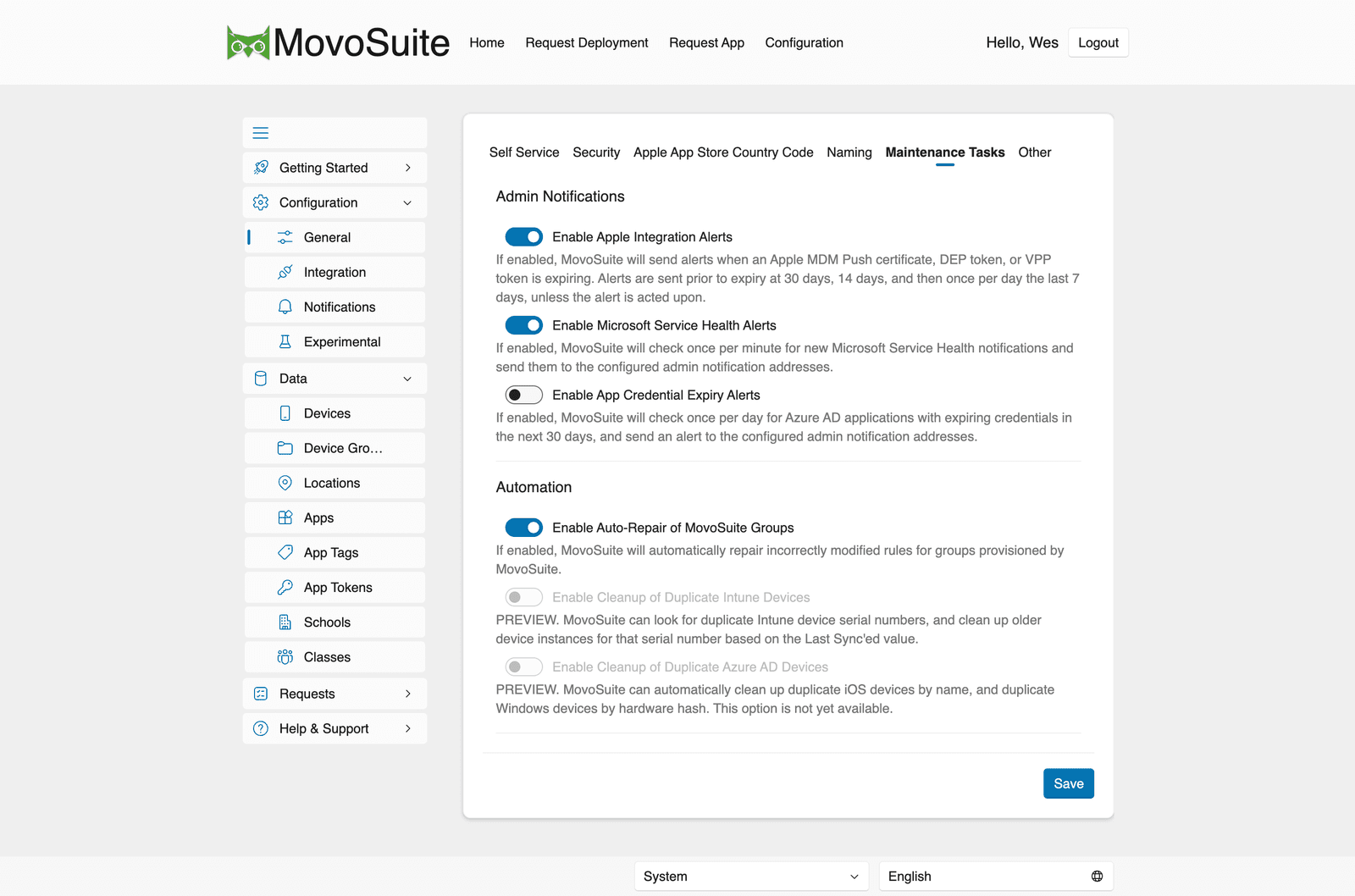
- Admin Notifications — toggles for Apple Integration Alerts, Microsoft Service Health Alerts, and App Credential Expiry Alerts (see Alerts & monitoring).
- Automation
- Enable Auto-Repair of MovoSuite Groups — automatically repair incorrectly modified rules on MovoSuite-provisioned groups.
- Enable Cleanup of Duplicate Intune Devices (preview) — clean up older device records sharing a serial number, based on Last Sync.
- Enable Cleanup of Duplicate Azure AD Devices (preview, not yet available).
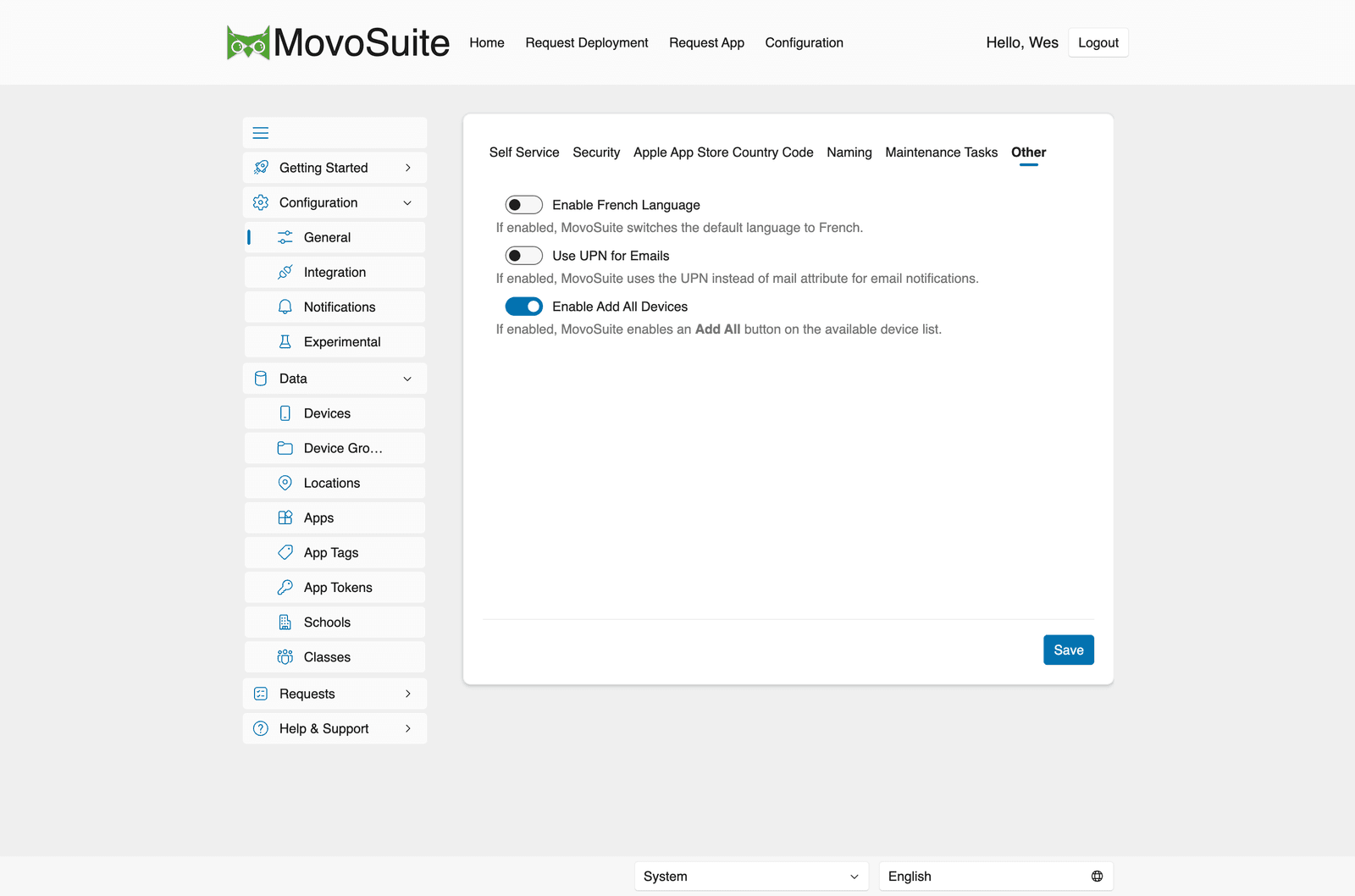
- Enable French Language — switch the default UI language to French.
- Use UPN for Emails — use the UPN instead of the mail attribute for email notifications.
- Enable Add All Devices — show an Add All button on the available-device list in the deployment form.
Admin access
Section titled “Admin access”The preferred way to grant admin access is via Microsoft Entra ID app roles (Self-Service User vs Administrator), or by selecting an Admin Group under the Security tab above.
Assigning the Administrator app role
Section titled “Assigning the Administrator app role”MovoSuite registers two enterprise applications in your tenant, and the role assignment must be made on both for full admin access:
- MovoSuite — the sign-in application. A role assigned here controls what the browser UI shows (the Configuration area).
- MovoSuite Server-Side — the API application. A role assigned here is what the server checks when you save changes.
In the Entra admin center, open Enterprise applications, find each app, and add the user under Users and groups with the Administrator role. If the role is assigned on only one of the two, the user either won’t see the Configuration area at all, or will see it but get a “must be an administrator” error on every save.
Admin Group
Section titled “Admin Group”The Admin Group is honored both in the browser UI (checked live against Microsoft Entra) and on the server when saving. The MovoSuite Server-Side API application emits your security-group membership in the access token, so a member of the configured Admin Group can save configuration without a separate app-role assignment.
One limit applies: Microsoft Entra omits group membership from the token when a user belongs to more than 200 groups. A heavily-grouped admin can still see the Configuration area but hit a “must be an administrator” error on save. Assign that user the Administrator app role (above), which is unaffected by the group limit.