

Deploy apps to devices
A deployment request installs (or removes) one or more apps on one or more devices. This is the most common thing you’ll do in MovoSuite.
Before you start
Section titled “Before you start”- Make sure the apps you want are in the catalog. If one isn’t listed, you’ll need to request it first so an administrator can purchase licenses.
- Some apps show an indicator that they require approval or a billing code — you can still request them, but they may need a sign-off before they install.
Step by step
Section titled “Step by step”-
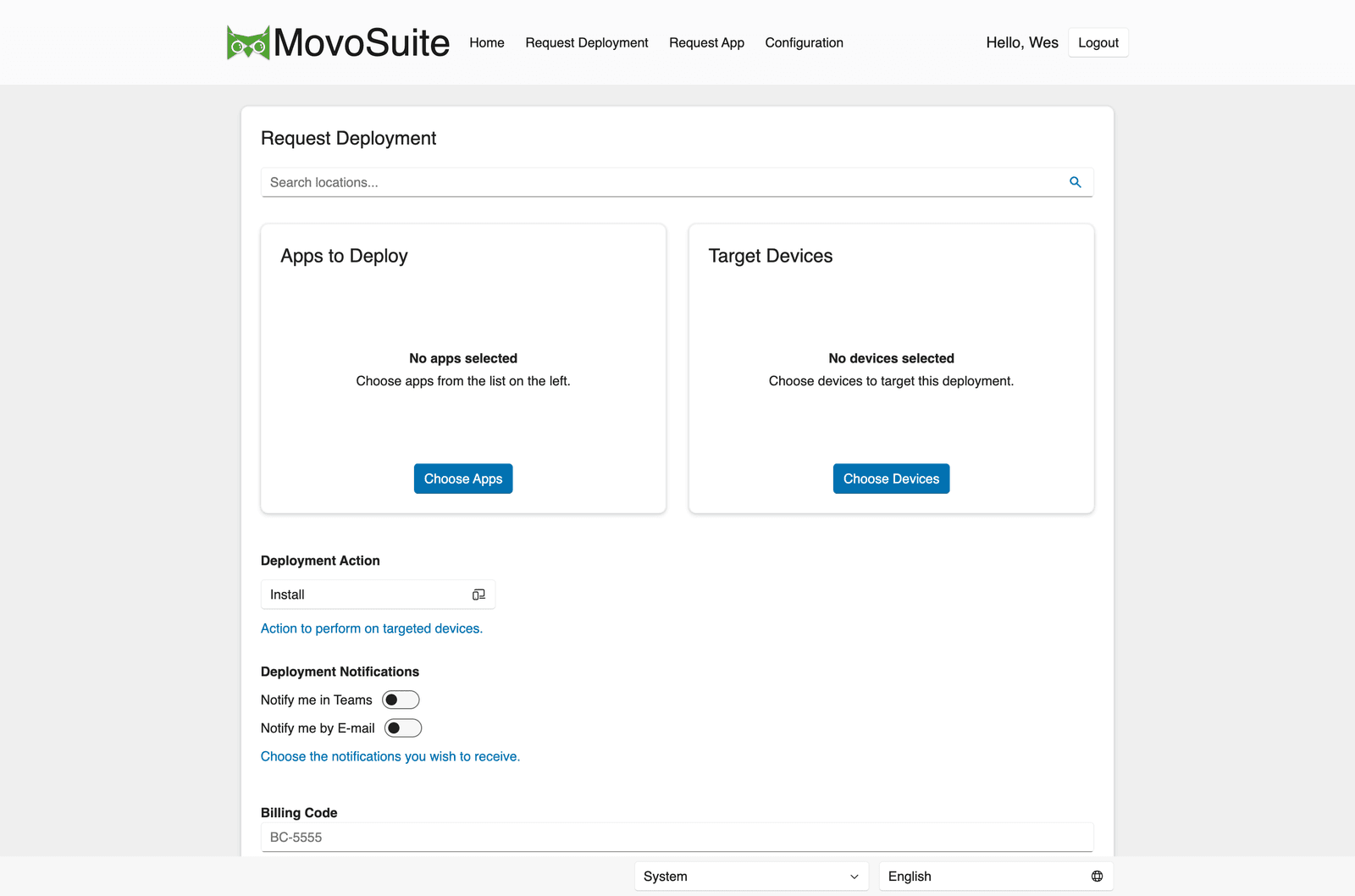
Go to Request Deployment. The form has two cards — Apps to Deploy and Target Devices — plus a location search at the top. After you pick a location, a device group search appears when groups are available. You can choose a group owned by that location or one of your personal groups so the Choose Devices dialog opens already filtered to those devices.
-
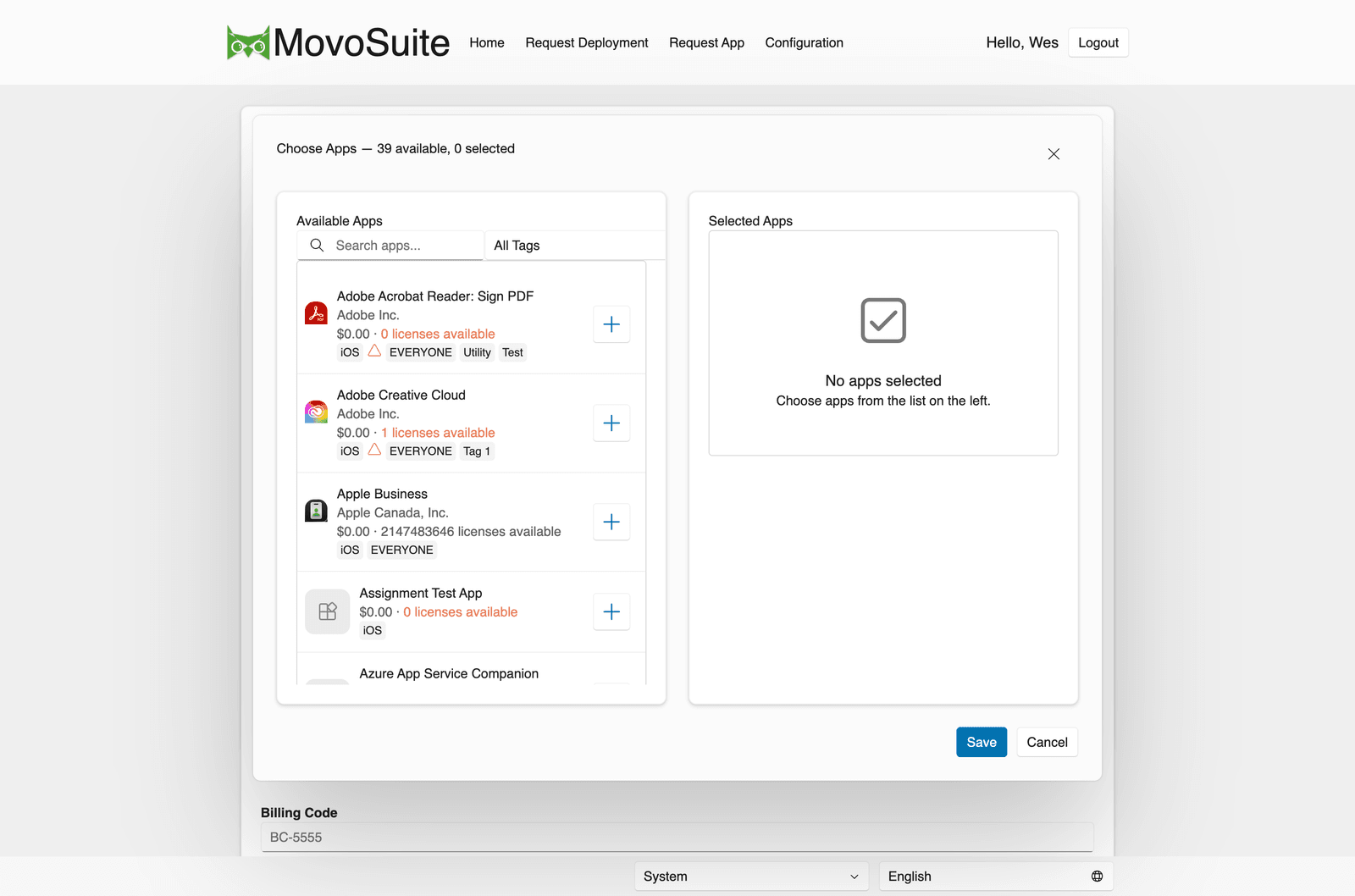
Click Choose Apps. In the dialog, use the search box and the All Tags filter to find apps, then click the + next to each one to move it to Selected Apps. Watch for indicators showing whether an app needs approval or a billing code, and the licenses available. Click Save.
-
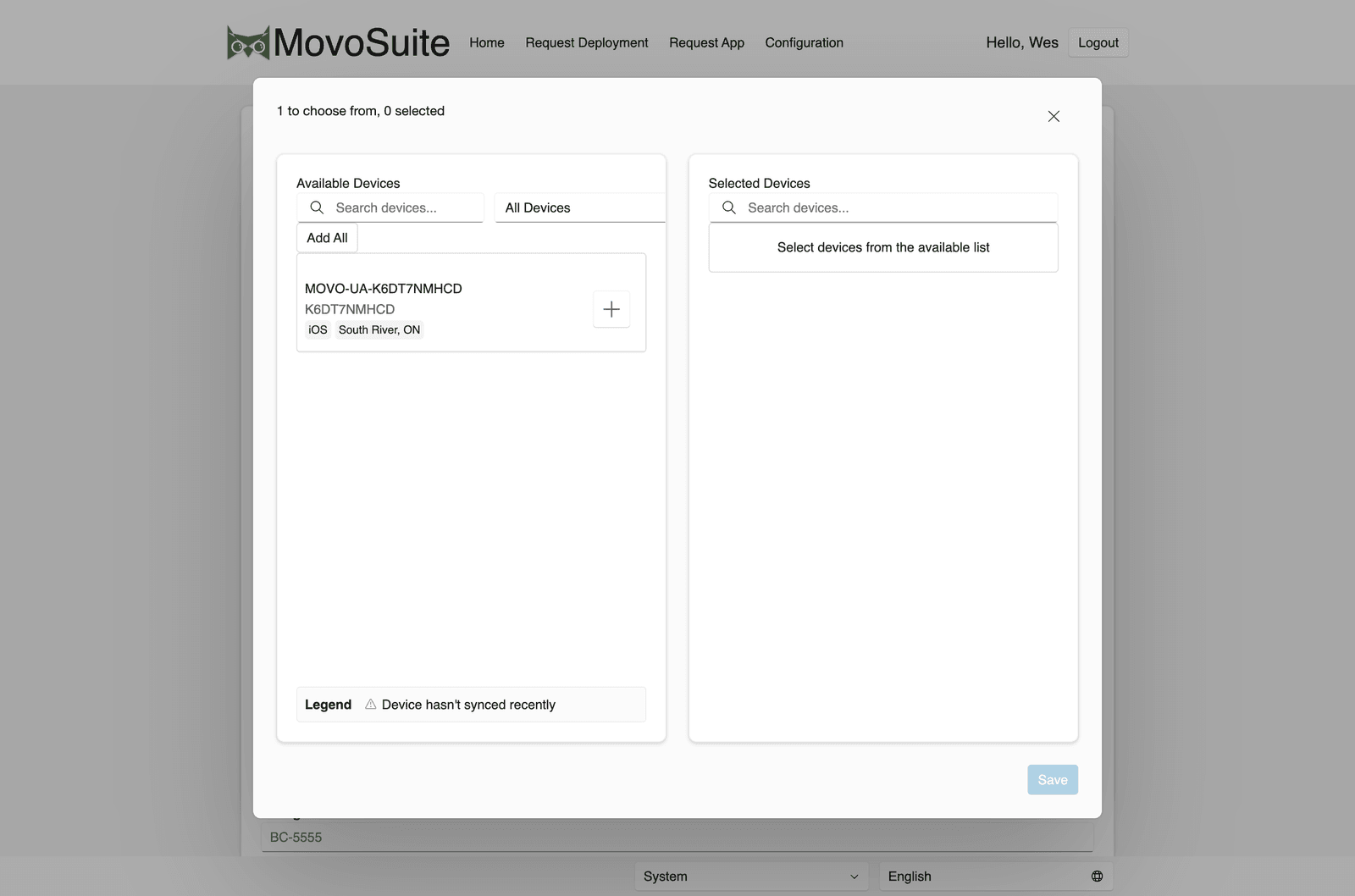
Click Choose Devices. Find devices with the search box and All Devices filter, then click + to add each (or Add All). You can optionally tick Save these devices as a group for later use. Click Save.
-
Set the Deployment Action:
- Install (default) — add the apps to the selected devices.
- Uninstall — remove the apps from the selected devices.
-
Under Deployment Notifications, choose how you want updates: Notify me in Teams and/or Notify me by E-mail.
In the native iOS app, requests are anonymous. Selecting either notification option makes Email Address required. MovoSuite uses the address as the delivery target for email and to identify your Teams account for a direct message. Selecting Teams does not also opt you into email notifications.
-
Fill in Reason for Request and Billing Code if they’re shown and required (your administrator can hide or require these). Email Address may also be required by your organization’s anonymous-request settings or when a selected app requires approval or a billing code.
-
Click Submit. You’re returned to the home page and your request appears in the request list.
What happens after you submit
Section titled “What happens after you submit”Here’s the whole journey, from your submission to apps landing on devices:
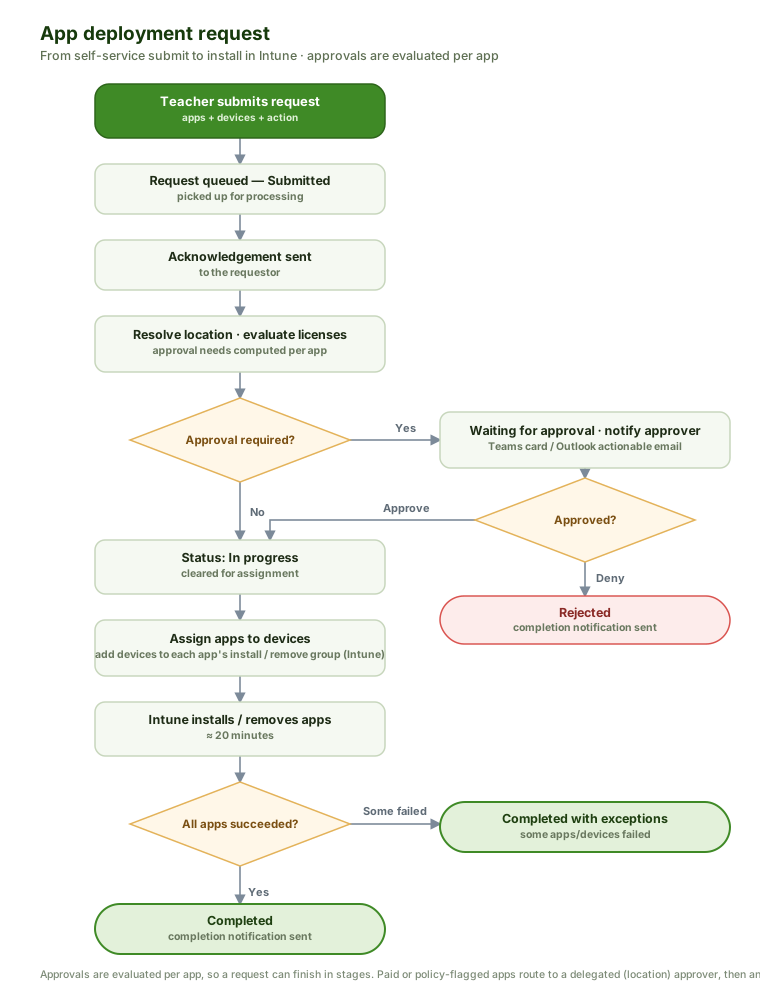
- You receive an acknowledgement that the request is being processed.
- If your administrator enabled Actionable (live) emails and you use a current version of Outlook, that email updates itself with the latest status each time you open it. (If your admin set up the Teams bot and you chose Teams notifications, you’ll get interactive updates there as well. Teams delivery is independent of the live-email setting.)
- When the request finishes — including any required approvals — you get a completion notification.
- Apps generally appear on devices within about 20 minutes of completion, often sooner.
If a request seems stuck, see Tracking your requests and Troubleshooting.