

Signing in
MovoSuite uses your school Microsoft account to sign you in — there’s no separate password to remember.
- Open the MovoSuite portal address your IT administrator gave you in a web browser.
- Click Sign in and choose (or enter) your school Microsoft account.
- Approve the Microsoft sign-in prompt if asked (this may include multi-factor authentication, exactly like signing in to Outlook or Teams).
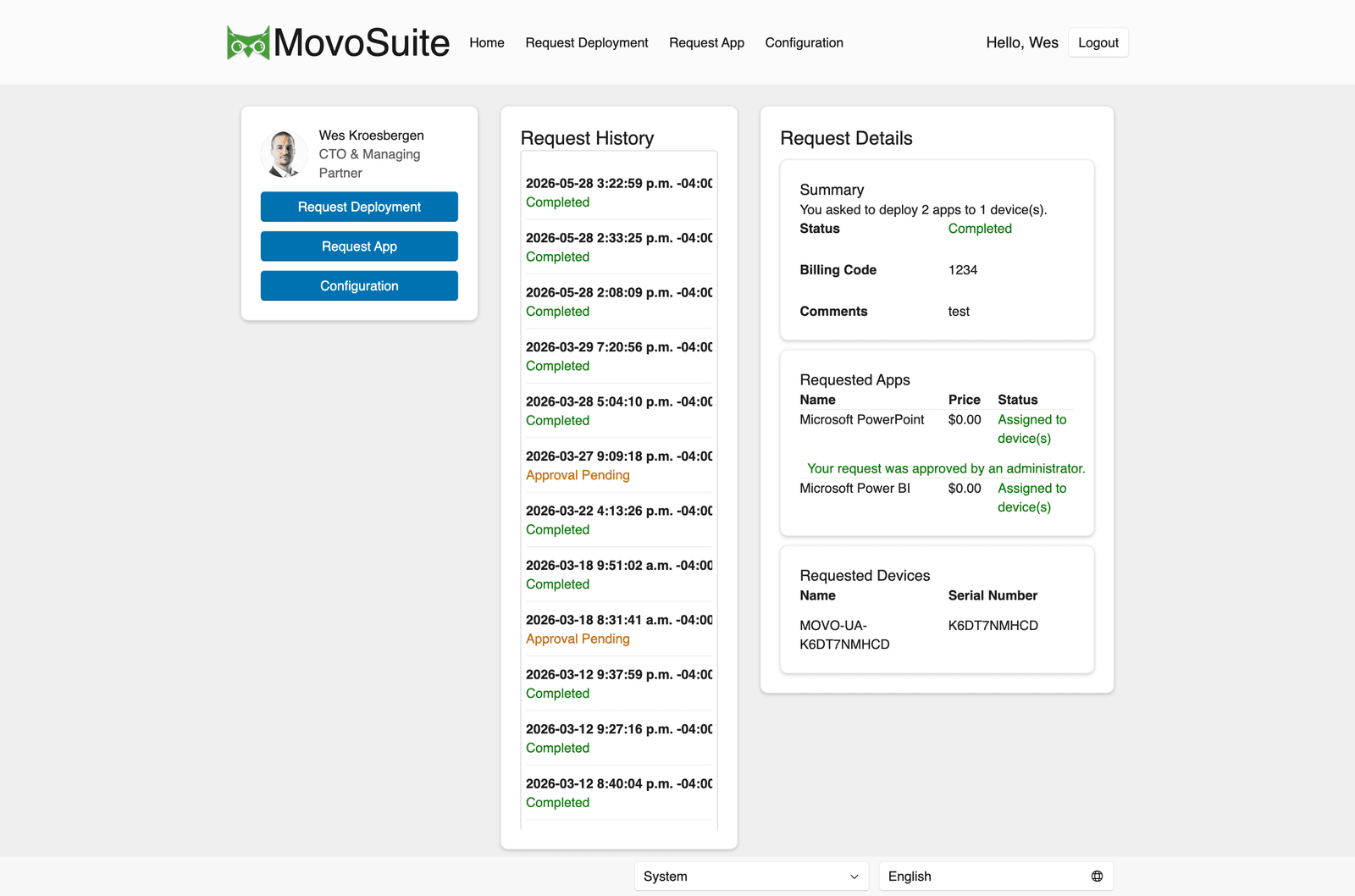
Once signed in, you land on the Home page, which lists your recent requests and the actions available to you.
Finding your way around
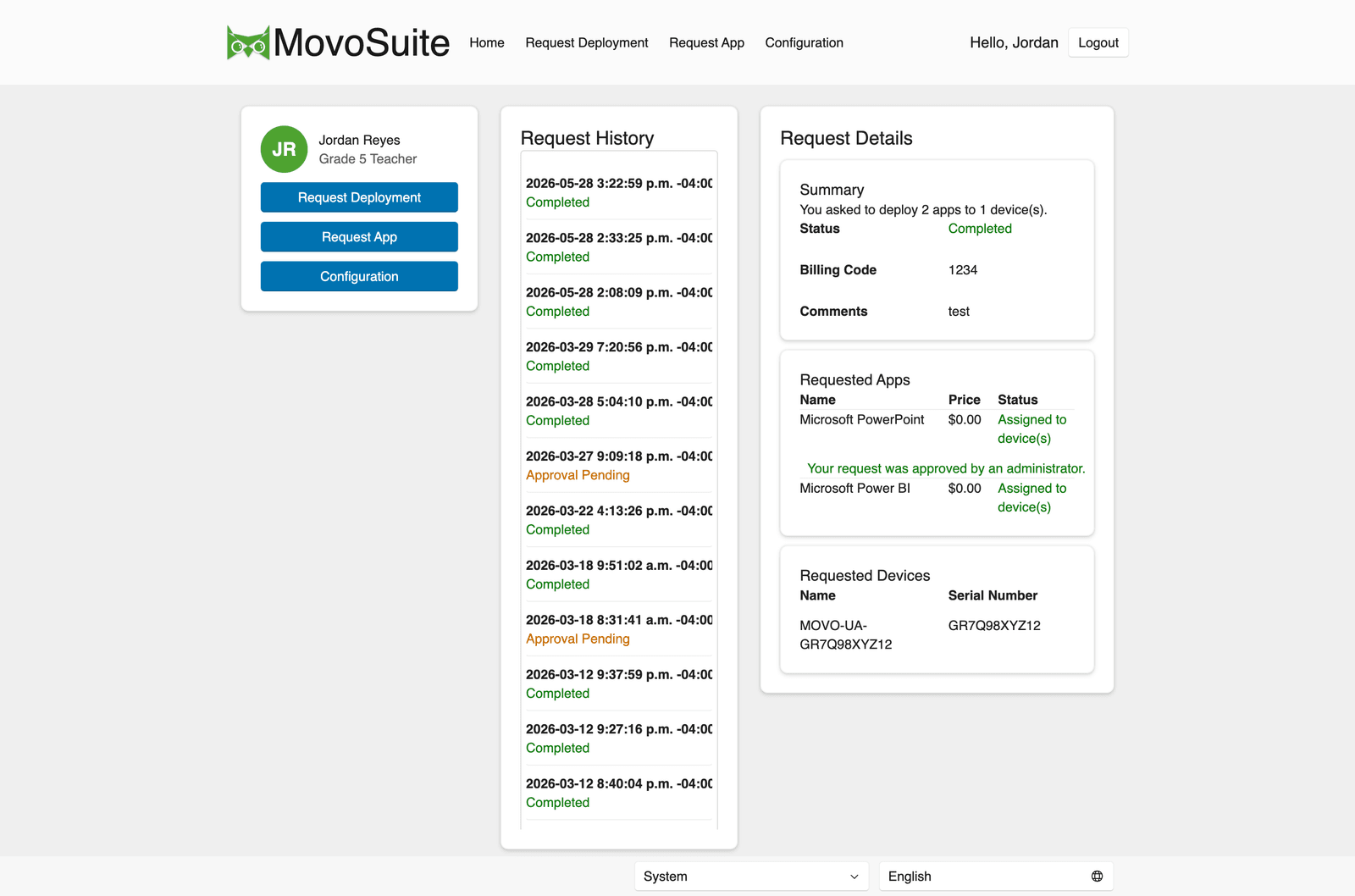
Section titled “Finding your way around”The top navigation bar gives you the actions you have access to — typically Request Deployment and Request App (and Configuration, if you’re an administrator).
What you can see
Section titled “What you can see”What appears in the app and device lists depends on how your administrator set up MovoSuite:
- Role-based access (RBAC) on — you see only the apps and devices for your school or location. This is the most common setup in larger districts.
- Role-based access off — you see all apps and all devices.
If you expected to see a device or an app and it isn’t there, it’s almost always a permissions or location-assignment matter for your administrator rather than a bug. See Troubleshooting.